




Email marketing plays a vital role in boosting the digital reach of the business, especially for those entirely operating online. Research says, 2022 alone recorded a count of over 333.2 billion sent and received emails and by 2025 this number is expected to shoot up to 375 billion. Surprisingly, the free HubSpot email signature tool had a major share in this phenomenon.
Email marketing is not going to vanish anytime in the near future, instead, it is expected to grow exponentially at a greater pace and thrive despite the existence and emergence of multiple modes of communication.
A signature at the bottom looks professional and plays the role of a trust-building component. Many email signature tools offer functionalities to add elements such as text, images, and links, enabling receivers to interact with your email and reach your website.
We are gonna unfold the features and functionalities of the HubSpot email signature generator and familiarize you with its uses and benefits. But before we reach there, let us begin by understanding email signature and its importance.
What is Email Signature?
Email is a widely used and enticing mode of communication that keeps you in constant touch with your prospects and clients and delivers timely updates on your business. Whether it is a personal email or a marketing email, an attested email signature block will help you gain trust of your receivers.
A signature block may contain details such as company name, designation, office address, and contact number. In addition to this, it comes with abilities of branding that lets you embed logo, brand name, website URL, and social media icons which could possibly increase the clicks and impressions on your website.
With so many features, you might think that it comes with complications and require a lot of effort in execution. However, it does not have to be, as HubSpot email signature provides ease in terms of usage and functionalities, it also lets you integrate the HubSpot signature seamlessly. Let us go step by step and understand how.
Create a HubSpot Email Signature without Coding
With the help of HubSpot’s email signature generator, you can create a compelling signature without coding and in less time.
The drag-and-drop functionality of HubSpot editor comes with an in-built template that lets you code and customize the template your way.
Visit the Official Webpage
Initiate by visiting the dedicated web page that HubSpot has for email signature generators.
Pick a Template
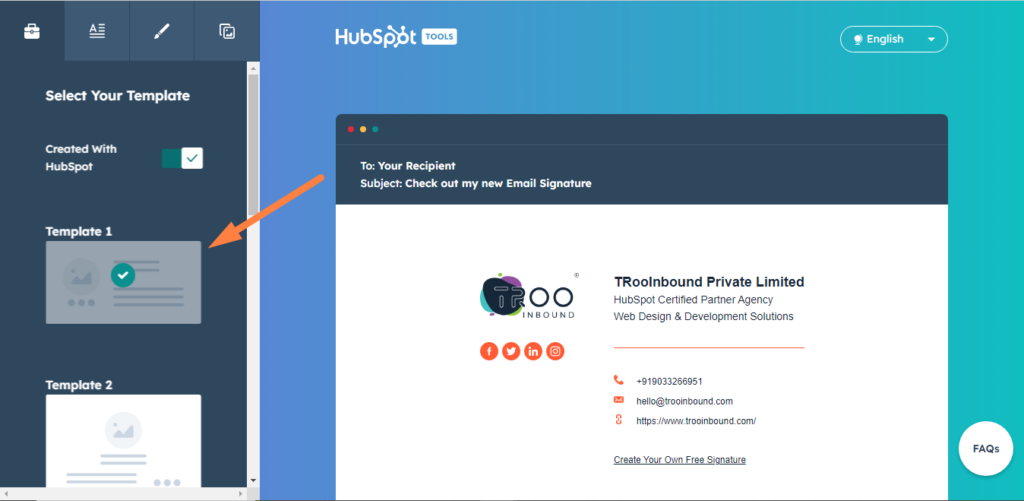
HubSpot’s email signature consists of templates, customization, personal information, and a Call-to-Action(CTA). This tool offers a variety of templates from which you get to pick one and customize later on.
Personal Details

This section requires you to add your personal and professional details which include your name, designation, company name, department, contact details, and your permanent address. In addition to this, HubSpot free email signature enables you to embed social media links.
Customization

This tool also offers basic modifications such as changing text, theme color, and link color to give an attractive look to the signature. Moreover, you can also increase or decrease the font size.
Custom Signature Image

This includes your profile picture with the logo image. Adding a custom signature image as a logo for your email signature is an important step. Commonly, business owners use their business logo or their own company logo.
Custom CTA

A webpage is incomplete without a CTA and to fill this need, the HubSpot email signature generator lets you add a custom CTA at the bottom with a limit of 24 characters which can be modified later in terms of color and text.
After following the step-by-step process, click on the ‘create signature’ button at the bottom. Post that you will need to answer the list of questions and click on ‘Confirm & Submit’ button. Once confirmed, your HubSpot email signature will be created.
Once the signature is ready you can copy & paste it on multiple platforms. Besides this, you can also copy & paste the signature source code.
How to Add an Email Signature in HubSpot?
Follow a short and simple 6-step process to add an email signature in HubSpot.
- Login to your HubSpot portal and click on the settings icon at the top-right corner.
- From the menu, select ‘General’ and then click on ‘Email’ tab.
- Then proceed with ‘Configure’ option.
- Later on, select ‘Edit Email Signature’ and you will see a window popping up.
- Select ‘HTML’ from the two options at the right under ‘Edit Email Signature’ window.
- Now replace the current source code of the HTML with the source code generated in HubSpot email generator.

Benefits of using HubSpot Email Signature Generator
To begin with, HubSpot has an ample amount of templates to choose from allowing you to create a personalized signature in less time. In addition to this, it has several benefits including:-
A boost to your marketing efforts – Embed a link to your latest marketing campaign in the signature and expect the count of clicks and impressions of that particular campaign to go up.
Branding – Make sure to align the email signature with your brand colors and fonts to deliver a consistent branding experience on all social media platforms.
Social Proof – Add the links to social platforms you are active on to showcase your marketing efforts to your prospects.
Add Relevant Links – Infuse links of a blog or a particular webpage in your email signature template. The easier they find to connect, the better.
People Also Search For:
These are some of the tips and tricks to create an email signature HubSpot. Creating an email signature is effortless, all you have to do is learn a little about the HubSpot email signature generator and use the in-built drag & drop functionality to design a unique, compelling, and professional-looking email signature. We believe that the above-mentioned guide explains it concisely and accurately. However, at any point in time, if it feels confusing and burdensome to implement email signature HubSpot, unhesitatingly reach out to us for any assistance and we will create personalized and decent HubSpot signatures for you.