



Outlook Email Template Design!
Are you planning a holiday and need to set up an out-of-office email in Outlook so your staff knows who to contact in your absence?
If you do not want to use Microsoft’s standard templates, you must create a custom template that suits your needs. Let’s begin with the steps to create the Outlook email templates, but before it, let’s walk through the statistical insights about the email opening ratio.
Email open rates are still on the rise because it is one of a conventional marketing methods that covers a lot of marketing grounds. Two of the three digital marketers use email marketing to communicate with their audience.
According to statistics, 81% of small and medium-sized businesses use email marketing to gain new customers. It is estimated that 19.7% of emails are opened.
If you frequently send the same email and are tired of typing the same message repeatedly, you’ll be happy to hear that there is an email template Outlook tool to help you with these email template designs. You can reuse these messages with a single click and save time and effort.
Creating Microsoft Outlook email templates is easy! It also saves you time because you do not have to copy and paste or write the same answer Iteratively.
Here’s is a guide to create outlook email template that assists you how to automate and compose email when you’re unavailable.
How do Microsoft Outlook Email Templates work?
Just like in Microsoft Word and Excel, templates in Outlook are documents that already contain certain details, such as the message text and formatting, that do not need to change from message to message and are available in every version of Outlook.
Templates help you save time and effort that you can then put into more important tasks, such as devising a great email marketing strategy.
How? With templates, you may often produce emails with minimal or even substantial modifications. As a result, you will not have to generate fresh emails from the start.
Readymade templates are also quite helpful for beginners who are not familiar with Outlook as a software.
When you save them on your device (File > Save As > Outlook Template, Outlook templates have .oft file extension.
Now let’s go through how to set up an Outlook email template and create email template designs.
How to Create an Outlook Email Template:
You may use Outlook email templates to send thank-you email, business proposals, newsletters, and professional communications, and telling clients about new terms and conditions.
A template contains the same email content every time, which means you only need to change a few details for each new email sent to a different recipient on the email list.
How do you add a template in Microsoft Outlook? Read on to learn more!
Create Outlook Email Template with these simple steps:
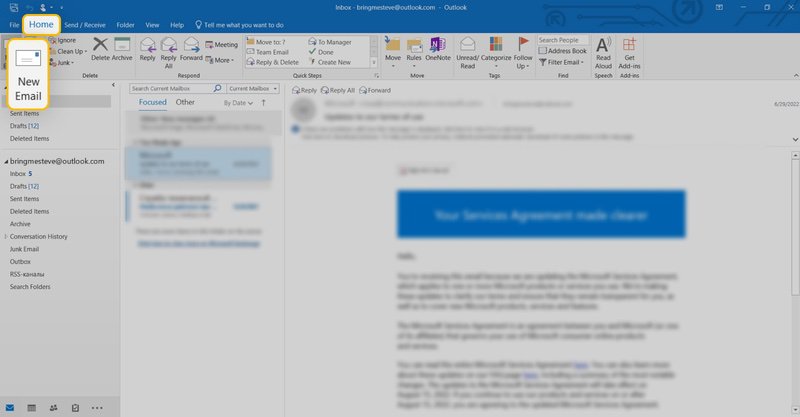
Step 1: Open the Outlook desktop or Outlook 365 Web App > Click the Home tab on the top menu bar > Once a menu appears > select New Email from the drop-down menu > Press the Ctrl + N key combination on your keyboard.
Source: clean.email
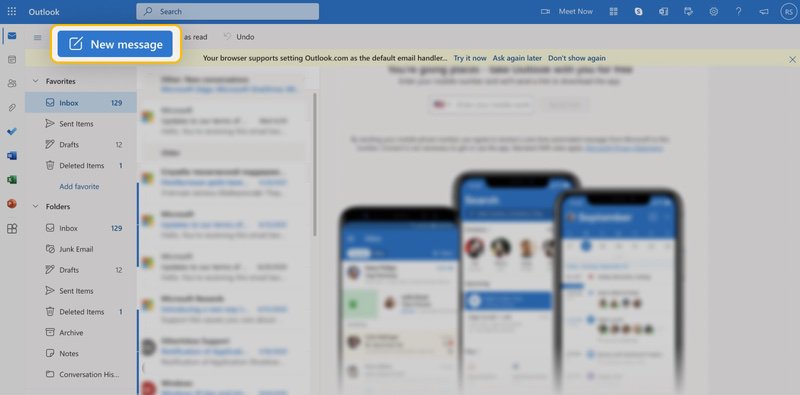
Step 2: After you start the creation of a new message, > a blank message window will appear.
Source: clean.email
Step 3: To switch from working with messages, to email templates > click the three dots at the bottom of the message window > A menu will open with My Templates > add-in as an option > Select option.

Source: clean.email
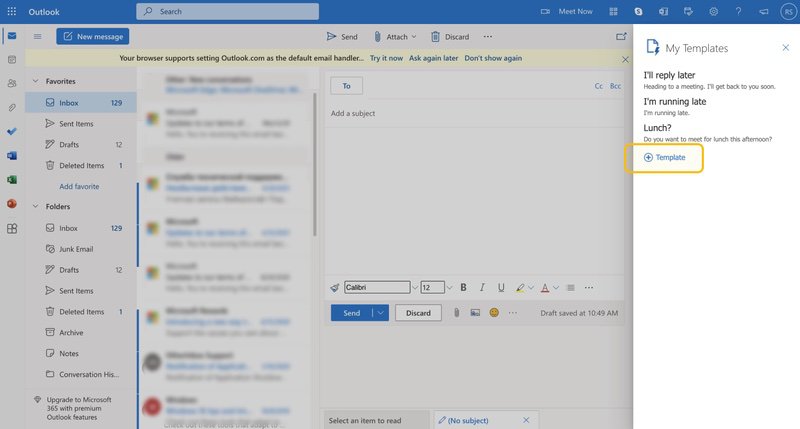
Step 4: On your Outlook dashboard > after selecting My Templates > you will see Outlook’s default templates, such as I’ll reply later, I’m running late, lunch, etc.
Step 5: Next, you must decide whether to use the default templates and customize them to your needs or create a new template by clicking the “+Template” button in the template window.
Source: clean.email
Step 6: When you create a new template, a form will appear in which you must provide information about the template, the title, and the content. When you have entered all the information, click on the blue Save button.
Step 7: Your template is now ready to use. However, you must also know how to delete or edit a template. Both actions are performed using the options displayed in the “My Templates” window, although the edit option is only for when you want to change the email template.
Step 8: In the Outlook message window, when you select your template, its content will be displayed, where you can add additional text, attachments, audio, or images.
Step 9: It is advisable to add the email’s subject line and recipients before creating your email template design.
That’s it! Your personalized email template is now ready. Unfortunately, we are not covering all the micro settings and features of the Email template outlook in greater detai in this lesson.
We want to share various advanced settings with you to get a better insights of the Outlook email template setup. We’ll cover the more complex edits in the upcoming detail article post.
Benefits:
Timesaving
Outlook email templates allow you to create pre-designed messages to reuse. Instead of typing the same content repeatedly, you can select a template and customize it as required. It can save time and effort, particularly when sending similar emails frequently.
Consistency
Efficiency
Error Reduction
Streamlined Communication
Personalization
Tracking & Analytics
Outlook email templates can be used with an email tracking and analytics tools. It lets you gather data on open rates, click-through rates, and other engagement metrics for emails sent using templates. Such insights can help you refine your email communication strategies and improve their effectiveness.
We have noticed various advantages to email template designs and their utility. But anyway If you have a burning question or want to develop a HubSpot email template, check out our article on ways to create amazing HubSpot email templates.
Another approach for emailing answer in a simple and rapid manner is the quick response method. Let’s have a look at the rapid response approach.
Quick Response Method:
Create Outlook email template with the following easy steps for a quick reply if you receive an email and want to reply using the quick reply method.
Click the Start tab in the Reading Pane > In the Quick Reply section > Select the Quick Reply template > Use a quick key to enter the quick key (message or text) > Change the message text > Click Send.

Summary
There are many methods you can use to create an Outlook email template.
The best way to understand these methods is to familiarise yourself with the Outlook environment, as you may find a dozen more workarounds besides the simple templates described in this article.
For more email-related content, explore our blog section, where we cover general topics like email marketing and email templates, and more niche like cold email marketing, sending emails using different frameworks, approaches for email conversion rates, and HubSpot email templates.
Create Outlook Email template designs with enhanced functionality, customizability, cost-effectiveness, timesaving, and community-driven solutions.
Why TRooInbound?
TRooInbound, the leading email template development service provider, offers a range of services worldwide with the best-experience email template developers with expertise in their field and end-to-end support.
Connecting with us to discuss email template design and development in-depth will make you feel optimistic. Because we have a wide spectrum of email template development ideas. Working with the experts like us will benefit your organization.
Hopefully, this given information will help you create a smooth Outlook email template.