
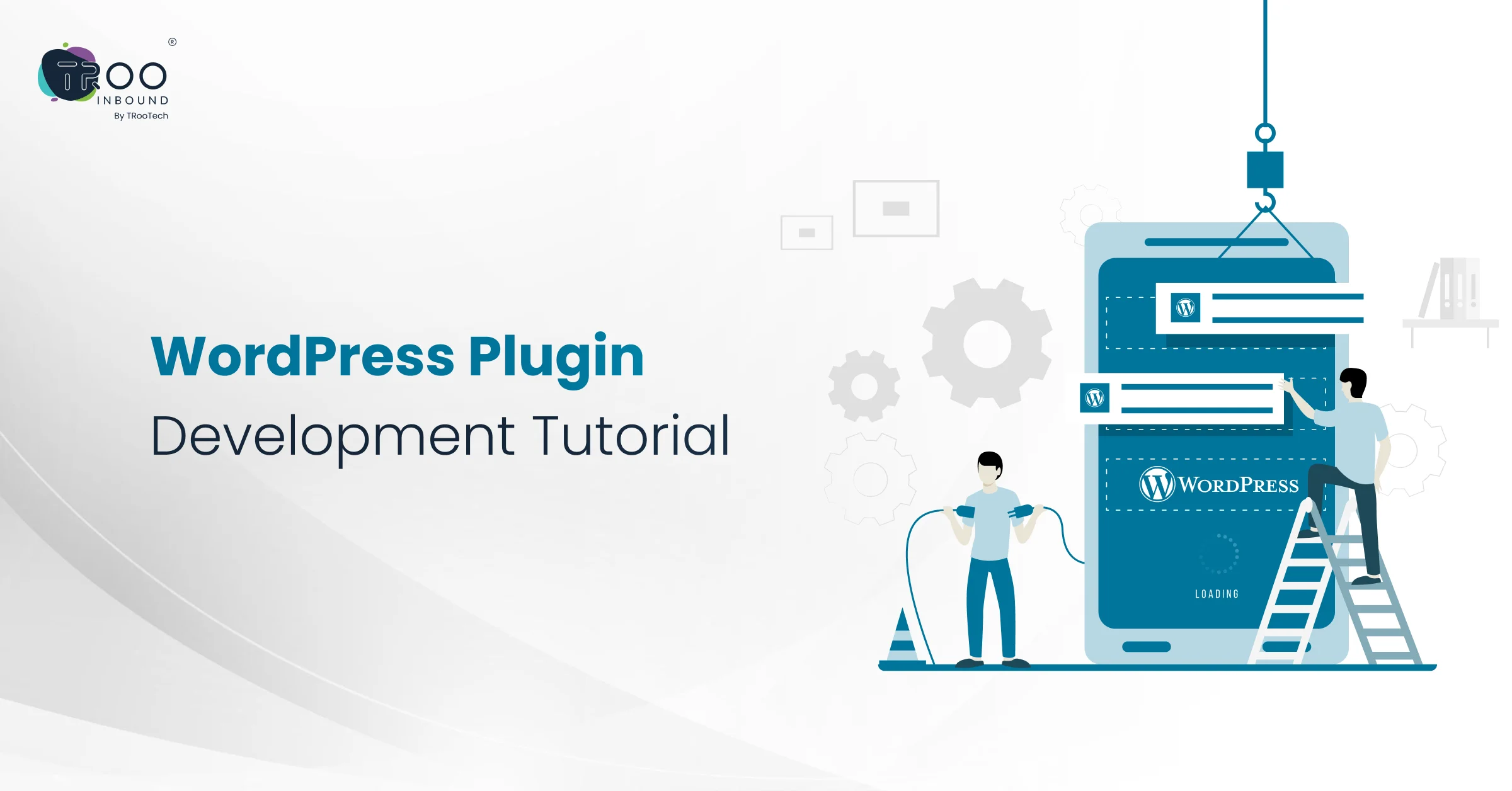


Are you looking to add a unique feature to your WordPress site that no plugin offers? This guide is for you.
While the WordPress plugin directory offers thousands of tools, sometimes your business needs something more specific. That’s where custom WordPress plugin development enters.
Dive into the guide to learn how to develop WordPress plugins, avoid common mistakes, follow best practices, and more. Let’s do it!
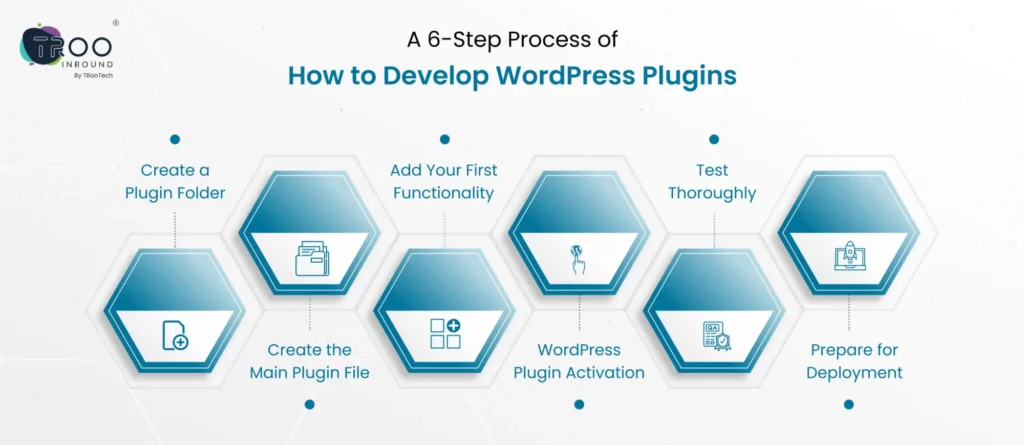
A 6-Step Process of How to Develop WordPress Plugins
If you are new to the tech world, or your busy schedule isn’t allowing you to spare time for this technical stuff, you can hire dedicated WordPress developers from web development agency to help you with WP plugin development.
In case you prefer creating a plugin o-y-o, here are the steps:
1: Create a Plugin Folder
Navigate to your WordPress installation directory and open the path:
/wp-content/plugins/
Create a new folder for your plugin. Give it a unique, lowercase, hyphenated name (e.g., custom-api-integration).
2: Create the Main Plugin File
Inside your plugin folder, create a PHP file with the same name as your folder (e.g., sample-plugin.php).
Add this required plugin header at the top of the file:
<?php
/*
Plugin Name: Sample Plugin
Plugin URI: https://yourwebsite.com/
Description: A sample plugin to integrate external APIs with WordPress.
Version: 1.0
Author: Your Name
Author URI: https://yourwebsite.com/
License: GPL2
*/
This tells WordPress to recognize your plugin.
3: Add Your First Functionality
When developing your first WordPress plugin, try to start small. For example, let’s add a function that displays a custom message on the admin dashboard:
function custom_admin_notice() {
echo ‘<div class=”notice notice-success”><p>This is your sample plugin!</p></div>’;
}
add_action(‘admin_notices’, ‘custom_admin_notice’);
4: WordPress Plugin Activation
Now, log in to your WordPress dashboard and navigate to:
- Plugins -> Installed Plugins
- Search for Sample Plugin (the plugin you made)
- Click on it and then click “Activate”
If everything’s working, you’ll see your custom message on the admin screen.
5: Test Thoroughly After Final WordPress Plugin Development
Test your plugin on a local or staging site before deploying it live. Check for:
- PHP errors or warnings
- Compatibility with your theme and other plugins
- Functionality across different devices or browsers (if it has UI elements)
6: Prepare for Deployment
It’s an optional step that you can move ahead with if you plan to distribute your plugin:
- Add a readme.txt file with proper formatting
- Follow WordPress coding standards
- Use version control (like Git)
- Zip your plugin folder for uploading to the WordPress plugin repository
Common Mistakes To Avoid While Creating A Plugin
Sometimes, developing a plugin in a hurry or without following a proper structure might invite many mistakes that can lead to long-term performance issues. Here’s what to watch out for to avoid such situations:
– Inaccurate Use of WordPress Hooks
WordPress plugins should integrate with WordPress using actions and filters (collectively known as hooks). Avoid direct updates in the core WP files or overriding default behavior without using hooks, as this can break your site during updates & go against best practices.
– Not Implementing Proper Security Measures
Many people overlook security in early plugin development, making their sites prone to a breach. So, always sanitize user inputs, escape outputs, and use nonces when working with forms or AJAX. Also, prevent direct file access by adding a “ defined(‘ABSPATH’) or exit; ” line at the top of every PHP file.
– Mixing Logic with Presentation
Avoid putting HTML, CSS, and PHP logic all in one file or function. Separating concerns helps with readability, testing, and scaling your plugin in the future
- Paths or URLs Hardcoding
Using fixed paths like /wp-content/plugins/sample-plugin or pre-defined URLs can cause problems in different hosting setups. So, practice using WordPress functions like plugins_url() or plugin_dir_url() for file referencing and asset loading.
Now, let’s explore popular WordPress plugin development best practices to keep your site secure and keep you away from creating such blunders.
4 WordPress Plugin Development Best Practices
While learning about how to develop WordPress plugins, implementing the following best practices from the beginning helps you prevent rework later:
#1 Keep Your Code Structured
Make your plugin follow a specific structure by separating functionality into dedicated files and folders like includes, admin, and public. This makes it easier to manage the plugin, especially for a dedicated WordPress plugin developer or an agency offering full-stack WordPress Plugin Development.
#2 Use Git for Version Control
#3 Use WordPress Functions Over Raw PHP
#4 Write Clear Documentation and Inline Comments
Good documentation helps users understand your plugin and helps other developers maintain it. For those offering WordPress plugin development services, clear docs reflect your professionalism and save time in support and handoffs.
When To Publish Your Plugin in WordPress Repository?
If you’re developing a plugin for your business or product, you might wonder whether it should be made public. The answer depends on your goals.
Publishing a plugin on the official WordPress plugin directory is ideal if:
- You want to offer a free tool to the community
- You plan to launch a freemium product with a paid version
- You want visibility as a product or service provider
To publish, you’ll need to follow WordPress’s guidelines, add a properly structured readme.txt file, and use their version control system (SVN). It also requires choosing an open-source license like GPL2.
Not all plugins need to be public. If you’re developing something for internal use, client automation, or custom WooCommerce features, it’s best to keep the plugin private. That’s when most businesses choose to hire WordPress plugin developer teams or dedicated WordPress developers to build, maintain, and scale their plugin as a proprietary tool.
Whether you’re building something for a broad audience or a specific workflow, our team can guide you through the best approach.
Hire WordPress Plugin Developer For Best Results
Building a plugin sounds simple until you try to do it yourself. Most businesses come to us after trying pre-built plugins that don’t fully meet their needs or break their site’s performance.
TRooInbound, a trusted WordPress plugin development company, helps enterprises turn custom ideas into real-life plugins. Whether you want to automate admin tasks, build a WooCommerce integration, or extend your website’s core functionality, we provide everything.
Our team of dedicated WordPress developers follows industry best practices, writes secure code, and ensures your plugin is optimized for performance and future growth.
If you need something more advanced, you can even hire wordpress website developers for full-time or project-based engagement. Let’s connect and discuss your requirements today!